
If you’re unable to log in to Remote Desktop due to this error, it’s likely because the default lockout policy for your operating system is set to temporarily disable the account after a certain number of failed login attempts. You can either disable this lockout policy entirely or adjust the threshold to allow more attempts.
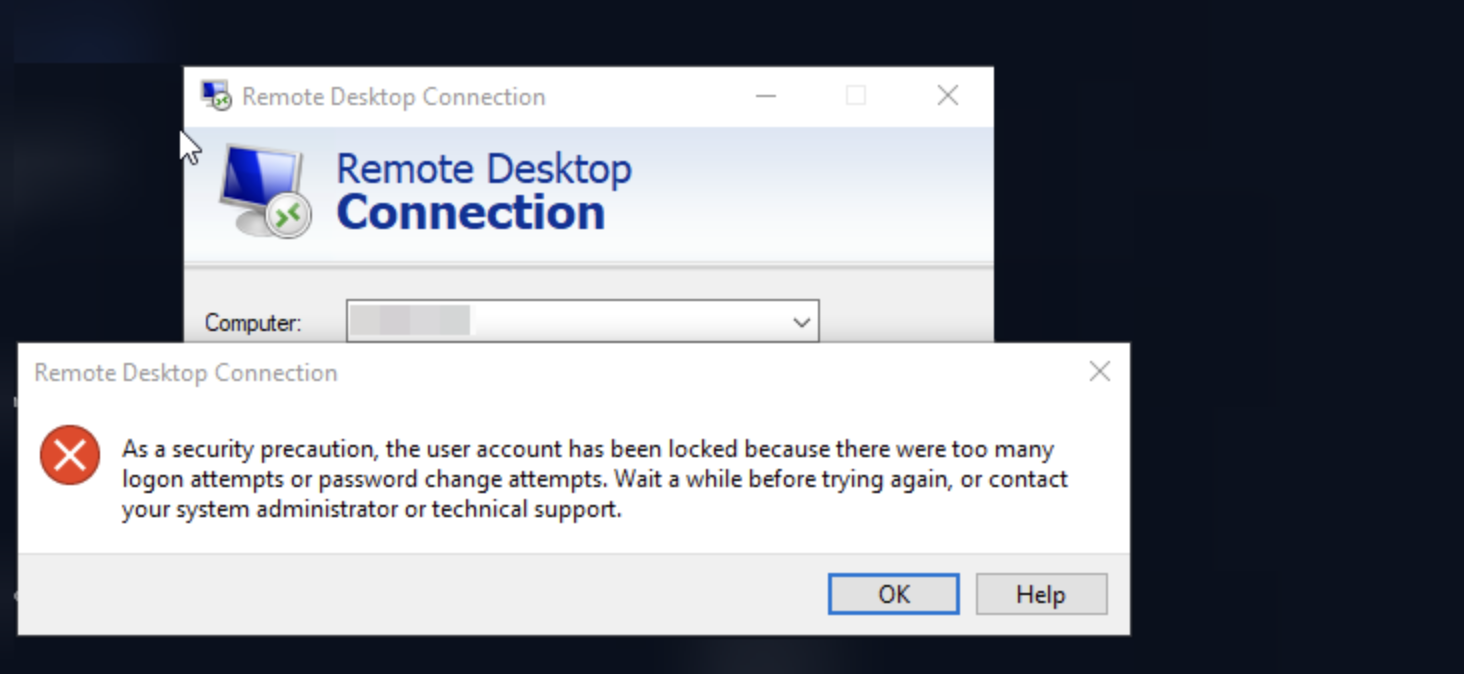
Follow the steps below or navigate to the following Group Policy setting on your Windows Server:
Step 1: From the search function type gpmc.msc and launch it: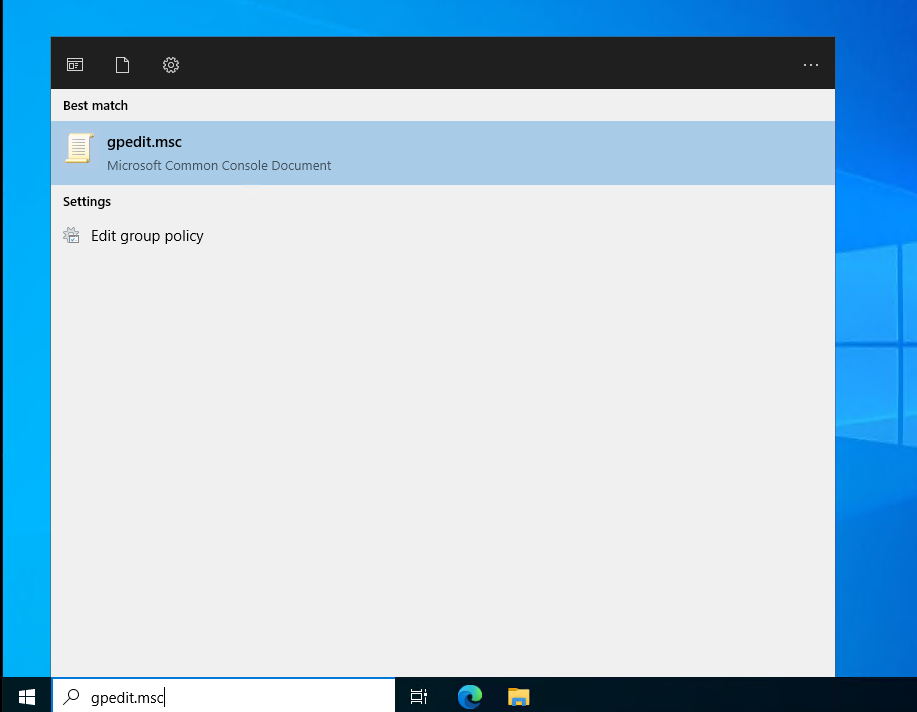
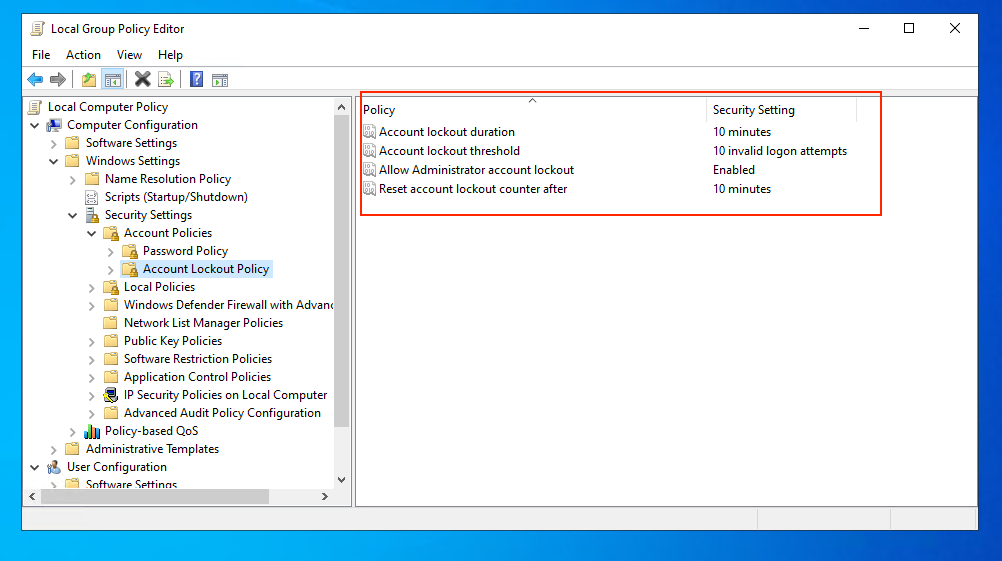
Step 2: Go to Computer Configuration > Windows Settings > Security Settings > Account Policies > Account Lockout Policy
and locate the Account lockout duration and Account lockout Threshold settings, you can modify as you decide:
If you set the threshold to 0 you're basically disabling the lockout:
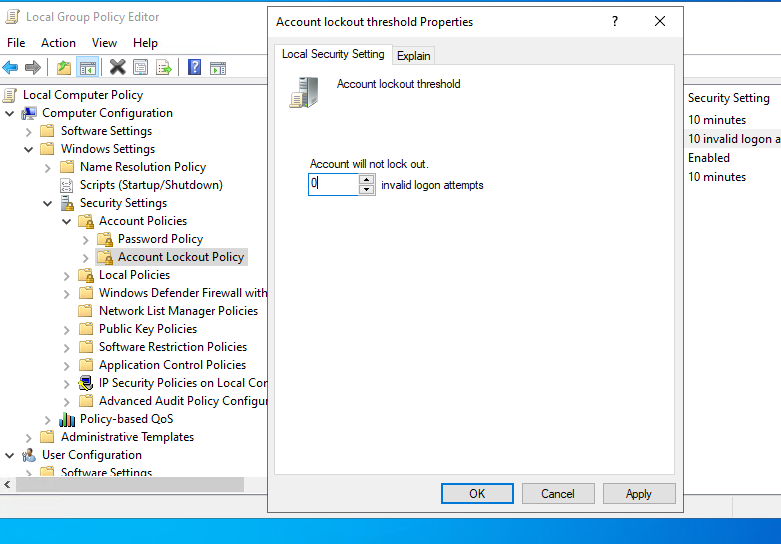
If you set to 0, do consider other means of securing your server if publically exposed, such as Firewall settings.