
This guide explains how to boot into single user mode (also called emergency mode or maintenance mode) on CentOS 7, AlmaLinux 8/9, Rocky Linux 8/9, and RHEL 8/9. Single user mode gives a root shell with minimal services running, allowing you to perform critical recovery tasks that cannot be done on a fully booted system. The process involves interrupting the GRUB bootloader and modifying kernel parameters — no additional software or tools are required.
Need a Linux server to practice recovery procedures safely? Owned Networks KVM VPS plans give you full console access and snapshot support. See our dedicated server plans or KVM VPS locations.
What is Single User Mode?
Single user mode (also referred to as maintenance mode or emergency mode) is a minimal boot state where the Linux kernel starts with only essential services. No networking, no multi-user login, and no graphical environment. It provides a direct root shell for recovery tasks that would be unsafe or impossible on a live system. Common use cases include:
- Resetting a forgotten or lost root password
- Running fsck to repair a corrupted or damaged file system
- Fixing a misconfigured /etc/fstab that prevents normal boot
- Recovering from a failed package update or broken dependency
- Editing system configuration files when the system cannot boot normally
- Diagnosing services that crash immediately at boot
Before You Start
- You need physical or console access to the server — this cannot be done over SSH because the process requires interacting with GRUB before the network is available
- On VPS platforms, use the VNC console or out-of-band console provided by your hosting panel
- The procedure differs between CentOS 7 / RHEL 7 and EL8/EL9 — identify your OS version with
cat /etc/os-releasebefore proceeding if unsure - Changes made in single user mode are persistent — this is a live recovery environment, not a sandbox
- If SELinux is enabled on EL8/EL9 and you modify files in
/sysroot, you must relabel before rebooting or the system may fail to boot
Method 1: CentOS 7 / RHEL 7
Step 1: Reboot and Access the GRUB Menu
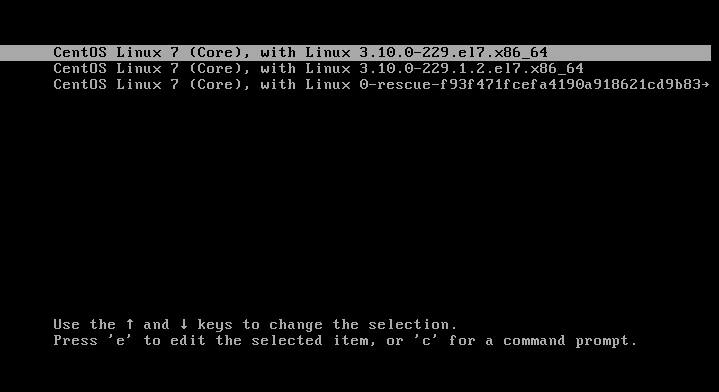
Restart the server. When the GRUB bootloader screen appears, press any key (spacebar is reliable) to stop the automatic boot countdown:
Step 2: Edit the Kernel Boot Entry
Use the arrow keys to highlight the kernel entry you want to boot into. Press e to enter edit mode for that entry.
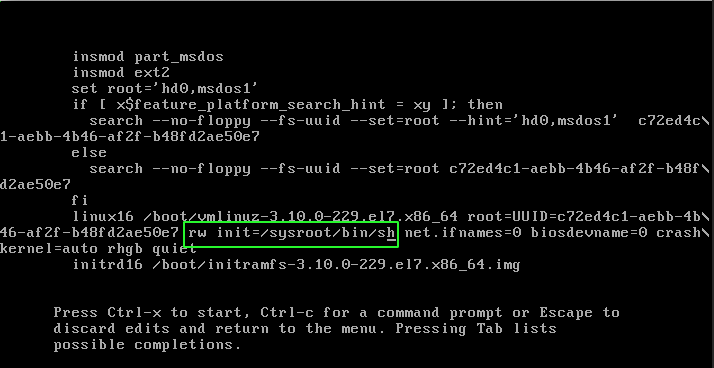
Use the down arrow key to find the line beginning with linux16. This is the kernel command line. Locate the parameter ro and replace it with:
rw init=/sysroot/bin/sh |
The edited line should look similar to this:
Step 3: Boot into Single User Mode
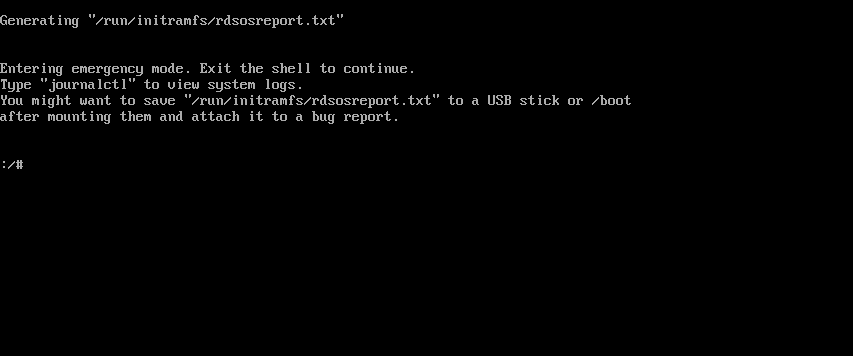
Press Ctrl+X or F10 to boot with the modified parameters. The system will start and drop you directly into an emergency shell:
Step 4: Mount the Root Filesystem
The root filesystem is initially mounted read-only. Use chroot to access it as the system root:
chroot /sysroot/ |
You now have a full root shell with access to the entire file system. Perform your recovery tasks from here.
Step 5: Reboot When Finished
reboot -f |
Method 2: AlmaLinux 8/9 / Rocky Linux 8/9 / RHEL 8/9
On EL8 and EL9 distributions, the GRUB kernel line starts with linux instead of linux16. The recommended method uses the rd.break kernel parameter, which interrupts the boot process in the initramfs stage and drops into a dracut emergency shell with access to /sysroot.
Step 1: Reboot and Access the GRUB Menu
Restart the server. When the GRUB screen appears, press any key to stop the countdown and highlight the kernel entry you want to boot into.
Step 2: Edit the Kernel Boot Entry
Press e to edit the selected entry. Use the arrow keys to find the line beginning with linux. Navigate to the end of that line and append the following parameter:
rd.break |
You can optionally also remove rhgb quiet from the same line to see verbose boot output, which is useful for diagnosing boot failures.
Step 3: Boot into Emergency Shell
Press Ctrl+X or F10 to boot. The system will start and stop in the dracut initramfs shell. The root filesystem is available at /sysroot but mounted read-only.
Step 4: Remount Root Read-Write and Chroot
Remount /sysroot with read-write permissions, then chroot into it:
mount -o remount,rw /sysroot chroot /sysroot |
You now have a full root shell. Perform your recovery tasks.
Step 5: Relabel SELinux (Required if SELinux is Enforcing)
If SELinux is enabled in enforcing mode and you modified any files — particularly /etc/passwd, /etc/shadow, or any configuration file — you must trigger a full filesystem relabel before rebooting. Skipping this step can prevent the system from booting after a password reset or file modification.
touch /.autorelabel |
Step 6: Exit and Reboot
Exit the chroot environment, then exit the initramfs shell. The system will reboot automatically:
exit exit |
If touch /.autorelabel was used, the system will perform an SELinux relabel on the next boot — this can take several minutes on large systems before the normal login prompt appears.
Common Recovery Tasks
Reset a Lost Root Password
Once inside the chroot shell on either method, use passwd to set a new root password:
passwd root |
Run fsck on a Damaged Partition
To check and repair a file system, unmount it first if possible, then run fsck. Replace /dev/vda1 with your actual partition:
fsck -y /dev/vda1 |
Fix a Broken /etc/fstab
If the system cannot boot due to a bad fstab entry, edit the file directly in single user mode:
vi /etc/fstab |
Alternative: Rescue Mode via systemd Target (EL7, EL8, EL9)
An alternative to the above methods is to boot into rescue.target or emergency.target using systemd. This boots a slightly higher level of the system than the initramfs shell. Append one of the following to the kernel line in GRUB:
# Rescue mode (requires root password, mounts all local filesystems) systemd.unit=rescue.target # Emergency mode (no root password required, only root filesystem mounted read-only) systemd.unit=emergency.target |
Note: rescue.target prompts for the root password before granting a shell. If you have lost the root password, use the rd.break or init=/sysroot/bin/sh methods described above instead.
Related Solution
Need a Linux server with console access for recovery practice?Owned Networks KVM VPS and dedicated server plans include out-of-band VNC console access, snapshot support, and full root access. Deploy a clean AlmaLinux, Rocky Linux, or CentOS instance in minutes and practice recovery procedures safely without risk to production systems.
|
Frequently Asked Questions
What is the difference between single user mode, rescue mode, and emergency mode?
These terms are used interchangeably but have technical differences on systemd-based systems. Single user mode is the traditional term referring to runlevel 1. Rescue mode (rescue.target) is the modern equivalent — it mounts all local file systems and requires the root password. Emergency mode (emergency.target) is more minimal, mounting only the root filesystem read-only and not requiring a password. The rd.break and init=/sysroot/bin/sh methods bypass the password requirement entirely and are used specifically when the root password is unknown.
Does the procedure differ between AlmaLinux and Rocky Linux?
No. The procedure for AlmaLinux 8/9 and Rocky Linux 8/9 is identical. Both use the same systemd-based boot process, the same GRUB2 configuration, and the same rd.break method. The linux kernel line (not linux16) applies to both.
Why is the SELinux relabel step necessary?
SELinux tracks security contexts for every file. When you modify files in the chroot environment (such as /etc/shadow during a password reset), the security labels on those files may not match what SELinux expects. The touch /.autorelabel command creates a flag file that tells SELinux to relabel the entire filesystem on the next boot, restoring correct context labels and preventing access denial errors.
Can I do this on a VPS without physical access?
Yes, if your VPS provider offers an out-of-band console such as VNC or IPMI. Owned Networks KVM VPS plans include VNC console access from the hosting panel. This gives you the same view as a physical monitor connected to the server, allowing GRUB interaction before the OS boots.
What if GRUB is password protected?
If GRUB is configured with a password, you will be prompted for it before being allowed to edit kernel parameters. If you do not have the GRUB password, the options are to boot from an external rescue ISO or to contact your hosting provider for console-level assistance.
Will changes made in single user mode persist after rebooting?
Yes. Single user mode is not a live or temporary environment — changes made to the filesystem are permanent. Password changes, configuration file edits, and file system repairs all persist after rebooting. This is intentional, as the purpose of single user mode is system recovery.