
Use the CentOS Vault repository:
Since CentOS 6 is EOL we need to point our yum to the vault repo, for this we run the following command:
# curl https://www.getpagespeed.com/files/centos6-eol.repo --output /etc/yum.repos.d/CentOS-Base.repo
Installing Redhat upgrade tool:
redhat-upgrade-tool is not available on standard repositories, you must setup the repository to install it.
# vi /etc/yum.repos.d/upgrade.repo
Place the following entries in it.
[upgrade]
name=upgrade
baseurl=http://buildlogs.centos.org/centos/6/upg/x86_64/
enabled=1
gpgcheck=0
Install (and reinstall) the following packages.
# yum erase openscap -y
# yum install https://buildlogs.centos.org/centos/6/upg/x86_64/Packages/openscap-1.0.8-1.0.1.el6.centos.x86_64.rpm -y
# yum install redhat-upgrade-tool preupgrade-assistant-contentsyum install redhat-upgrade-tool preupgrade-assistant-contents -y
PreUpgrade Assistant:
Run the following command to check the potential problem you might encounter with an upgrade from CentOS 6 to CentOS 7 before making a changes to the system.
# preupg
From the output of the previous command you can find what packages will be affected by this upgrade.
Perform the actual upgrade:
We are going to use the repo file for the upgrade, issue the following command to import the GPG key:
# rpm --import http://mirror.centos.org/centos/7/os/x86_64/RPM-GPG-KEY-CentOS-7
As per the man page, the following command is used to upgrade CentOS 6; this will download the necessary packages from the internet:
# centos-upgrade-tool-cli --network=7 --force --instrepo=http://vault.centos.org/7.0.1406/os/x86_64/
........

setting up system for upgrade
Finished. Reboot to start upgrade.
Now reboot the server.
# reboot
Upgrade to CentOS 7:
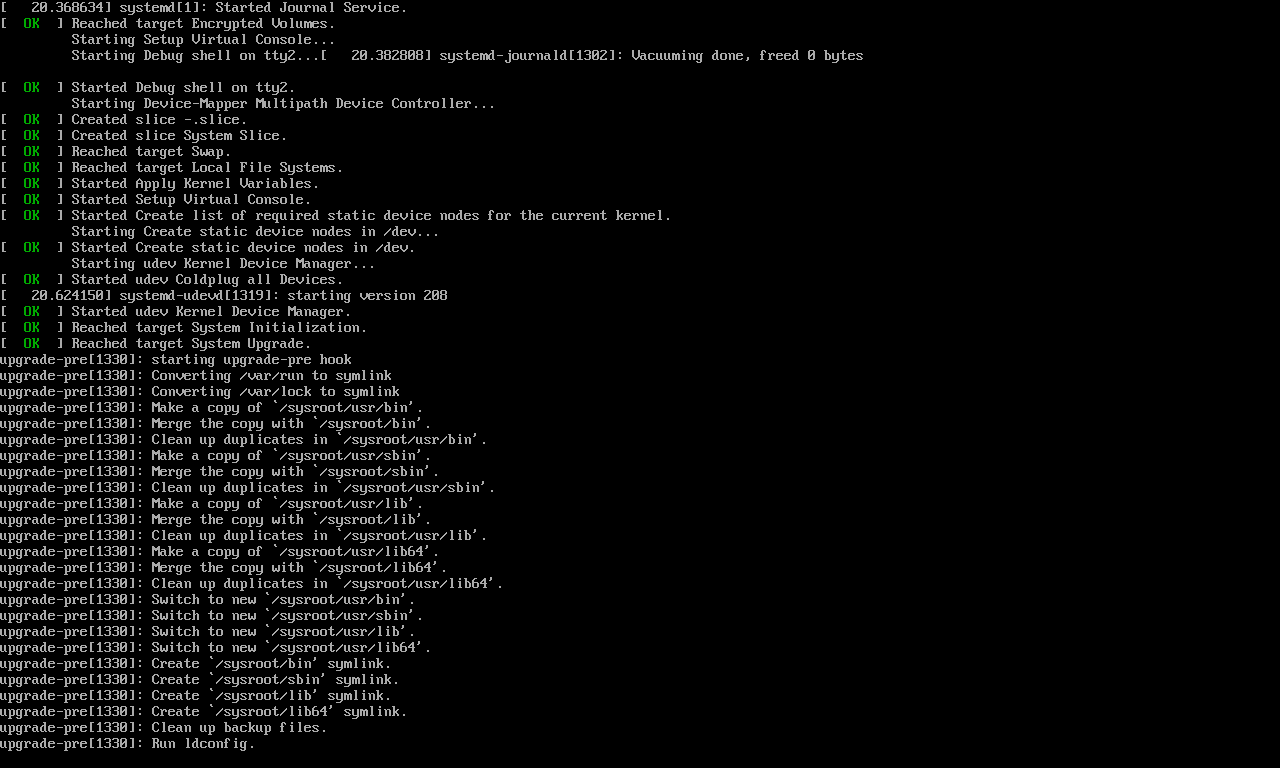
The server will boot with the redhat-upgrade-tool kernel to upgrade the CentOS 6, now you can find the upgrade progress/activity via console.
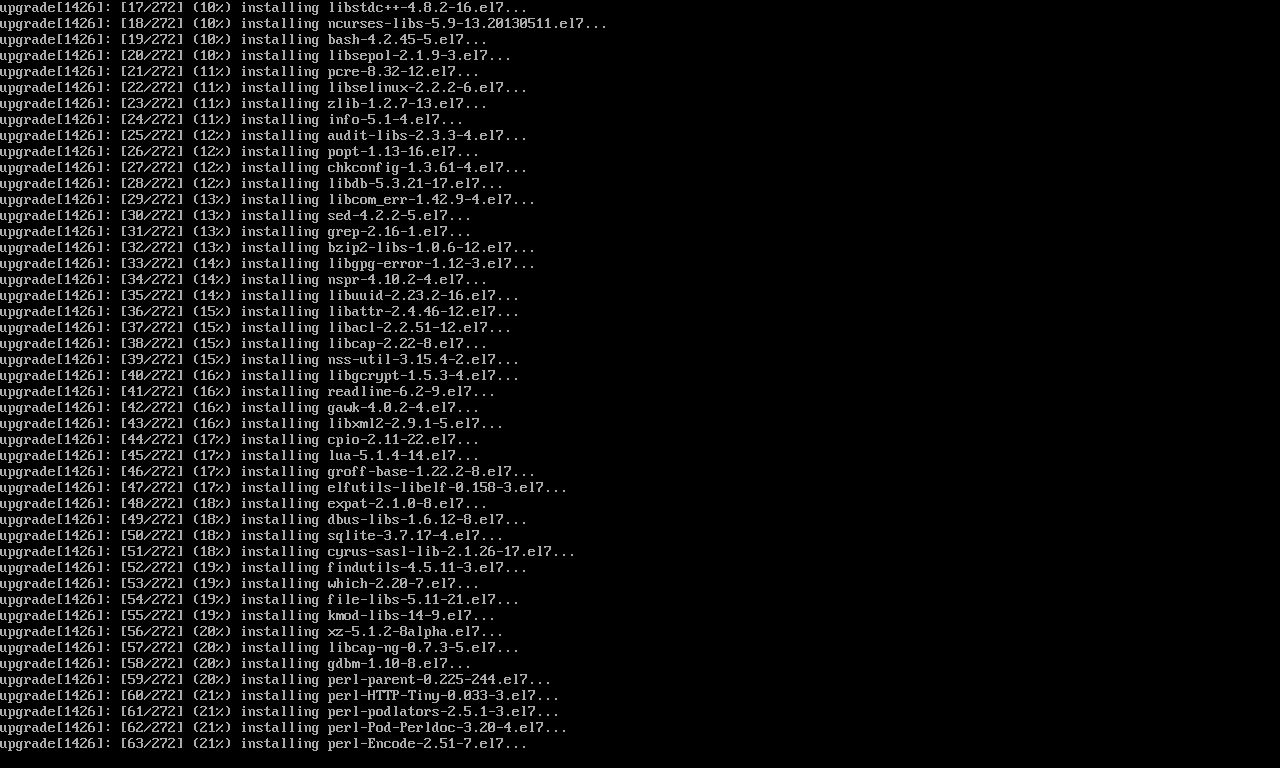
Now you can see the installation of the packages.
READ Configure iSCSI Target & Initiator on CentOS 7 / RHEL7
Once completed, you will get the login screen.

Some times after the reboot you might get an error like this:
grep: error while loading shared libraries: libpcre.so.0: cannot open shared object file: No such file or directory
Simply run the following command to fix it:
# ln -s /lib64/libpcre.so.1 /lib64/libpcre.so.0
Additionally, run the following command:
# ln -s /usr/lib64/libsasl2.so.3.0.0 /usr/lib64/libsasl2.so.2
Then verify CentOS version using the following command:
# cat /etc/redhat-release
CentOS Linux release 7.0.1406 (Core)
This should be it!